
Step by step
From the launcher to the game
- 1
Choose whether to update
Choose Single Player or Multiplayer. In Single Player you can postpone an update and still play.
- 2
Choose your game mode
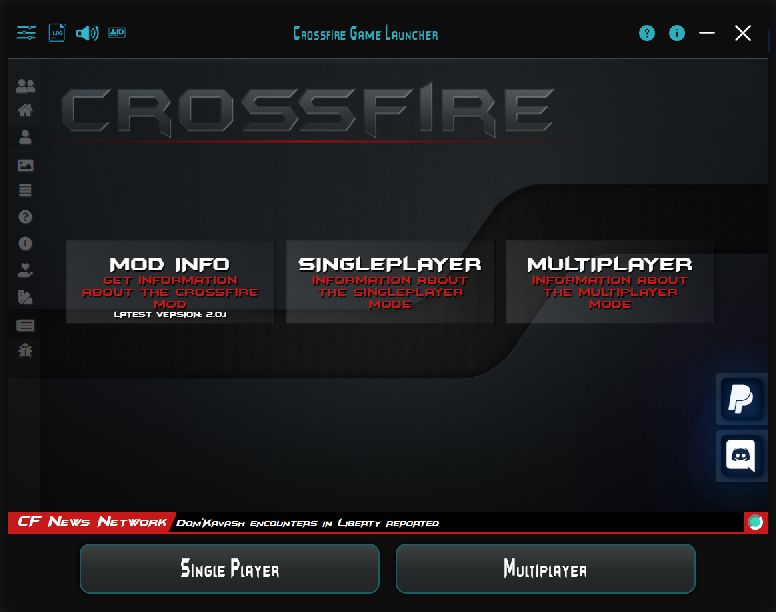
The main screen has Single Player and Multiplayer buttons along the bottom. Choose your mode.
- 3
Investigate an issue
Record the message and time. Open Log before following the guided help.
Complete game updates
The launcher checks for game updates. For Single Player, you can update but do not have to update to play. Multiplayer always performs update checks. If you choose to update, wait for it to finish.
If a download does not progress, note the message shown. Check your internet connection and open Log to find the relevant error. Guided help can point you to the next step.
Start the game
Use Single Player or Multiplayer at the bottom of the main window. In Single Player you can postpone offered updates. If you choose to update, launch after it finishes.
If the game exits unexpectedly, record the time and your last action. These details help with diagnosis.
A launcher update is available
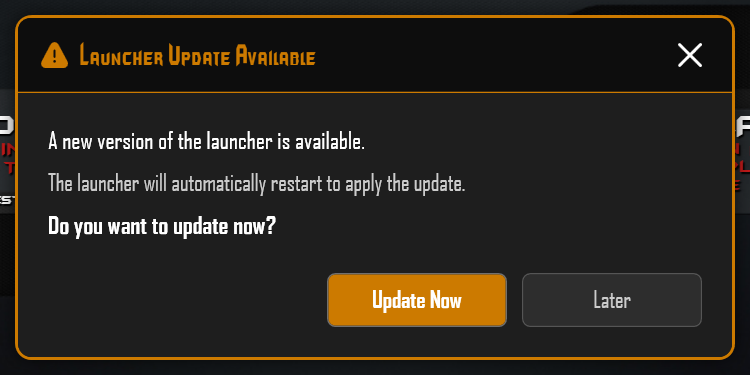
Launcher Update Available announces a new launcher version. Update Now starts the update; the launcher automatically restarts to apply it.
Later postpones the update. Updating is optional for Single Player: you can postpone it and still play.
The launcher is already running
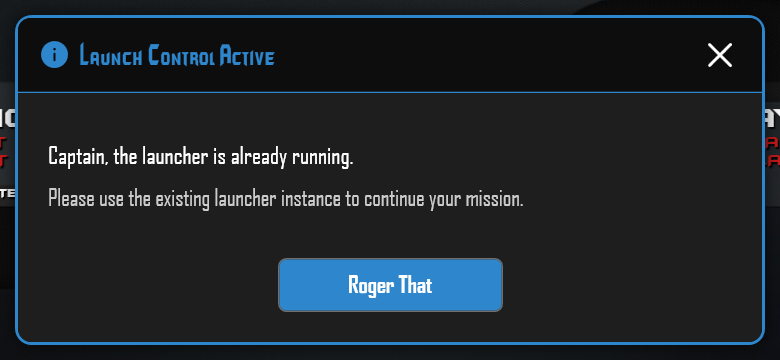
Launch Control Active appears when another instance is already running. Confirm with Roger That and use the existing launcher window.
The launcher is in the wrong folder
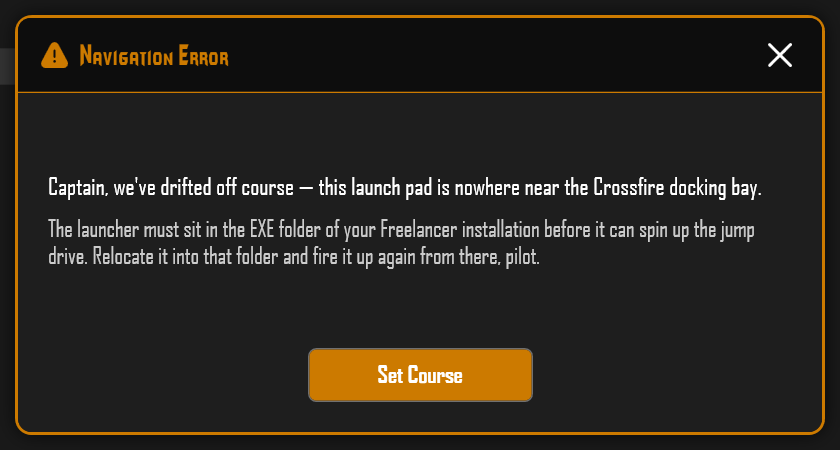
Navigation Error means the launcher is outside its required directory. It must be in the EXE folder of your Crossfire installation, for example D:\Freelancer Crossfire\EXE.
Confirm the message with Set Course. Place the launcher file in that EXE folder and launch it again from there. Use the directory of your actual Crossfire installation.


