
Step by step
Use the account profile you want
- 1
Choose your source
Import existing accounts from ADF, FLIDs.ini or the current registry. Add creates a new account ID instead.
- 2
Name and organize profiles
Set meaningful Display names, record character names in Notes and arrange profiles with the arrows.
- 3
Save and back up
Click Save changes and configure a protected backup. Check the log if an operation fails.
- 4
Activate the intended account
Select your profile and use Activate selected. You can do this with the game open at the server selection screen, without restarting. Importing alone does not activate the account.
Open Account Manager
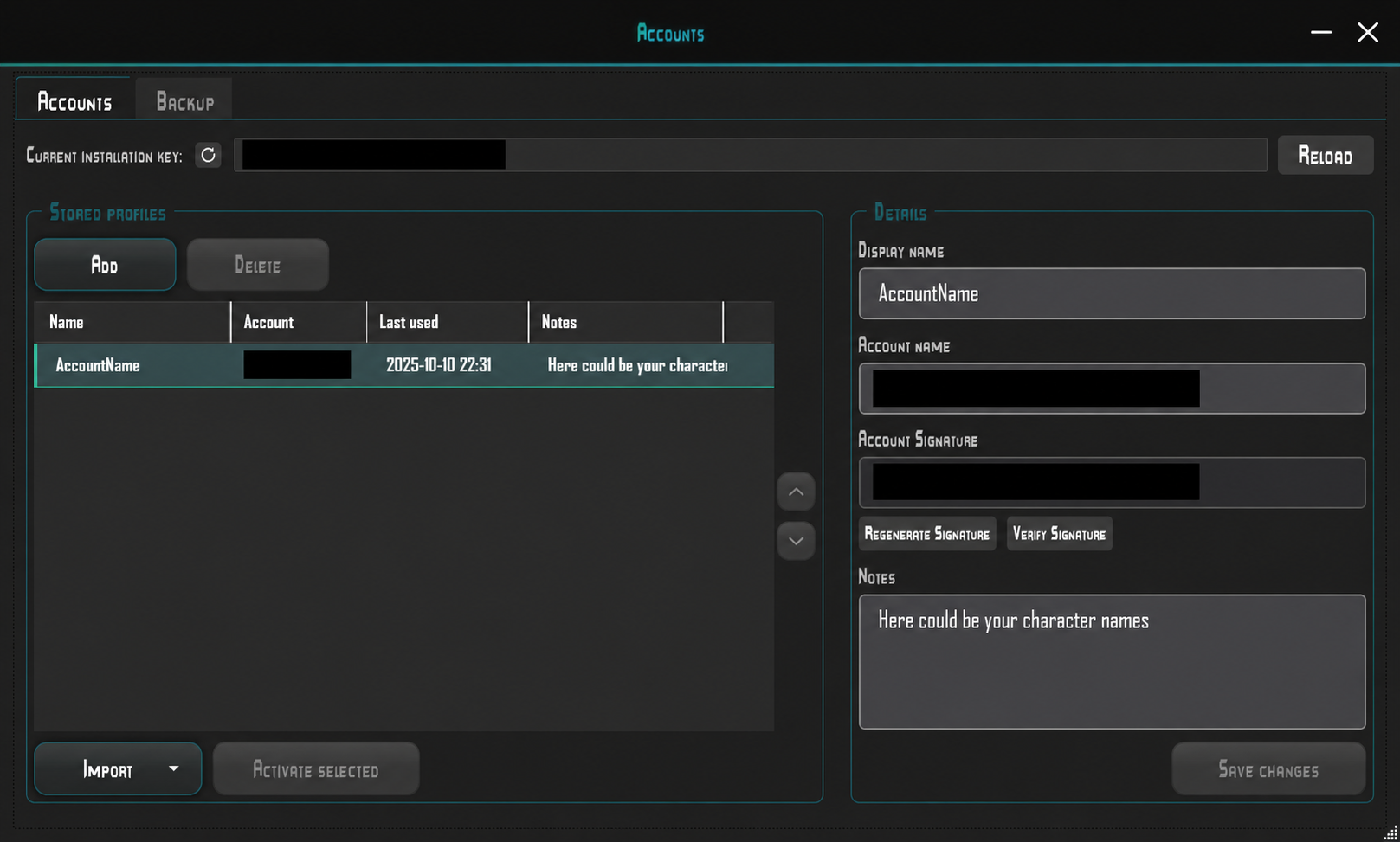
Open Account Manager using the AID icon in the top toolbar. The Accounts tab lists stored profiles on the left and details for the selected profile on the right.
Add adds a profile. Select a profile, edit Display name and Notes, then confirm with Save changes. Notes can help you identify the associated characters.
Activate selected selects the highlighted profile. Import provides import options; the arrows control profile order. Delete removes a profile – back up important account data first.
The current installation ID appears at the top. Account name and Account Signature appear on the right, alongside Verify Signature and Regenerate Signature. Real identifiers are concealed in this image. Keep them out of public screenshots.
Display names, character names and list order
Select an account and give it a recognizable Display name, such as “Main account – Trader” or “Clan – Escort”. This is a local label; it changes neither the account ID nor in-game character names.
Use Notes to record the characters belonging to that account, for example “Orion – Freighter; Vega – Fighter”. Add roles or other reminders if useful. You maintain these notes yourself; the launcher does not retrieve them automatically from the game.
Select an entry and use the arrows beside the list to move it up or down one position. Keep frequently used accounts near the top. The corresponding arrow is disabled at the beginning or end of the list.
Click Save changes after editing names, notes or order. Add, Delete and Import also require saving. Closing the manager with unsaved changes prompts you to confirm.
Import accounts from ADF
Open the Import menu, choose ADF import and select your existing Account Data File (.adf). Renaming an unrelated file does not turn it into a valid ADF file.
The importer reads display names, account IDs, signatures and existing comments as Notes. Use a complete original file: account ID and signature are required; incomplete records are not imported.
The result dialog reports accounts found, new accounts added and duplicates skipped. An entry with the same ID and signature as a saved account is skipped. Existing names and notes are not updated by the import.
Review the imported profiles, adjust their names and notes and click Save changes. Only Activate selected makes the chosen profile the current Multiplayer account.
Import accounts from FLIDs.ini
Choose FLID Changer import from the Import menu and select your existing FLIDs.ini (.ini). Use the FLID Changer account file, rather than an unrelated Crossfire configuration file.
The importer reads account sections containing INSTALL, MAN and MANS. All three values must be present and non-empty. The section name becomes the initial display name; DISC becomes Notes. Rename a technical label such as FLID_1 to something meaningful afterwards.
Existing accounts remain in the list. Entries matching a saved account ID and signature are skipped. Review the import statistics and click Save changes. Importing alone does not switch your active account.
Import the current registry account
Choose the current registry account option from the Import menu. The launcher reads the Freelancer Multiplayer account currently registered for this Windows user. It does not import every account you have used in the past.
If that account ID is already listed, the existing profile is selected. Otherwise a profile is added with an automatic name and the available signature. Set a meaningful Display name, record character names in Notes and click Save changes.
Activate selected makes the selected profile active for Multiplayer. You can stay at the server selection screen and confirm the warning with Yes; no game restart is needed. Do not switch while playing a character on a server.
Understand and resolve import messages
“No valid accounts found”: the file contains no readable complete accounts. Check the import source and use an intact original file. ADF requires an ID and signature; FLIDs.ini also requires INSTALL. Changing the file extension does not repair missing data.
“All … account(s) … already exist”: every recognized account is already saved. This is not a failed import. Check the existing entries; their notes and names are not overwritten.
“Failed to import accounts from ADF/FLIDs file”: read the specific detail in the dialog and log. Select the file again if it has moved. For access problems, use a readable local copy; for damaged data, use an intact original or backup. Canceling the file picker is not an error.
“No account detected …” during registry import: no current account ID was found for this Windows user, or reading the registry failed. Try Reload and check the log for “Could not read the account name from registry”. Use an existing account file or backup if no ID is present. Add creates a new identity; it does not recover an old account.
Account switch warning: the game is still running
You can switch accounts while Freelancer is running; “Transponder Override Warning” asks you to confirm before the switch. The warning does not mean your account is already damaged.
You can switch while you are at the server selection screen. Leave the game open, select the account in Account Manager, click Activate selected and confirm the warning with Yes. Then connect using the chosen account. You do not need to restart the game.
If you are still playing a character on a server, choose No and return to the server selection screen first. Switching while playing can cause problems with character data. No cancels the switch and keeps your current account active. Alternatively, close the game, switch accounts and launch again.
Activation, signatures and save errors
“Could not write account to the registry”: your selected account could not be activated. Check its ID and signature and read the error in Log. If access is denied, running with administrator permissions may be needed. Then try activating again.
“Account name is empty”: the technical account ID is missing, rather than the Display name. Recover the correct ID from your backup. “Signature mismatch” means the ID and signature do not match. Verify the ID first; Regenerate Signature can then calculate its matching signature. Save afterwards. A valid signature does not confirm that your characters exist on a server.
Delete is disabled for the active account. Activate another account before removing it from the local list. Removing an entry is not a substitute for backing up its old ID.
“Saving accounts failed” appears in the log. Check the reported path, available disk space and write access. Save again before closing the manager; changes are not reliably stored when saving fails.
For “Unable to retrieve pilot records” or damaged account-file messages, preserve the existing files and use a known intact backup. If backup fails, also check the destination folder and network or cloud-folder availability. For further help, share the error and diagnostic package, but do not publicly share account IDs, signatures or account backups.
DigitalProductId missing when creating an account
When adding a new account with Add, you may see “DigitalProductId not found in either registry view.” The launcher cannot find a registry value needed to create the new account ID.
First update to launcher version 1.7.6 or newer and try again. This version fixes the case where the value is present only in the other Windows registry view.
If the error remains, you can try reinstalling Freelancer. Back up your account data and saved games first. Crossfire must then be installed again. Reinstalling is not a guaranteed fix if the required Windows registry value is still missing.
If you already have an account, you can instead import it from ADF, FLIDs.ini or the current registry, or restore an account backup. These options do not need to generate a new account ID.
Import, export and backup
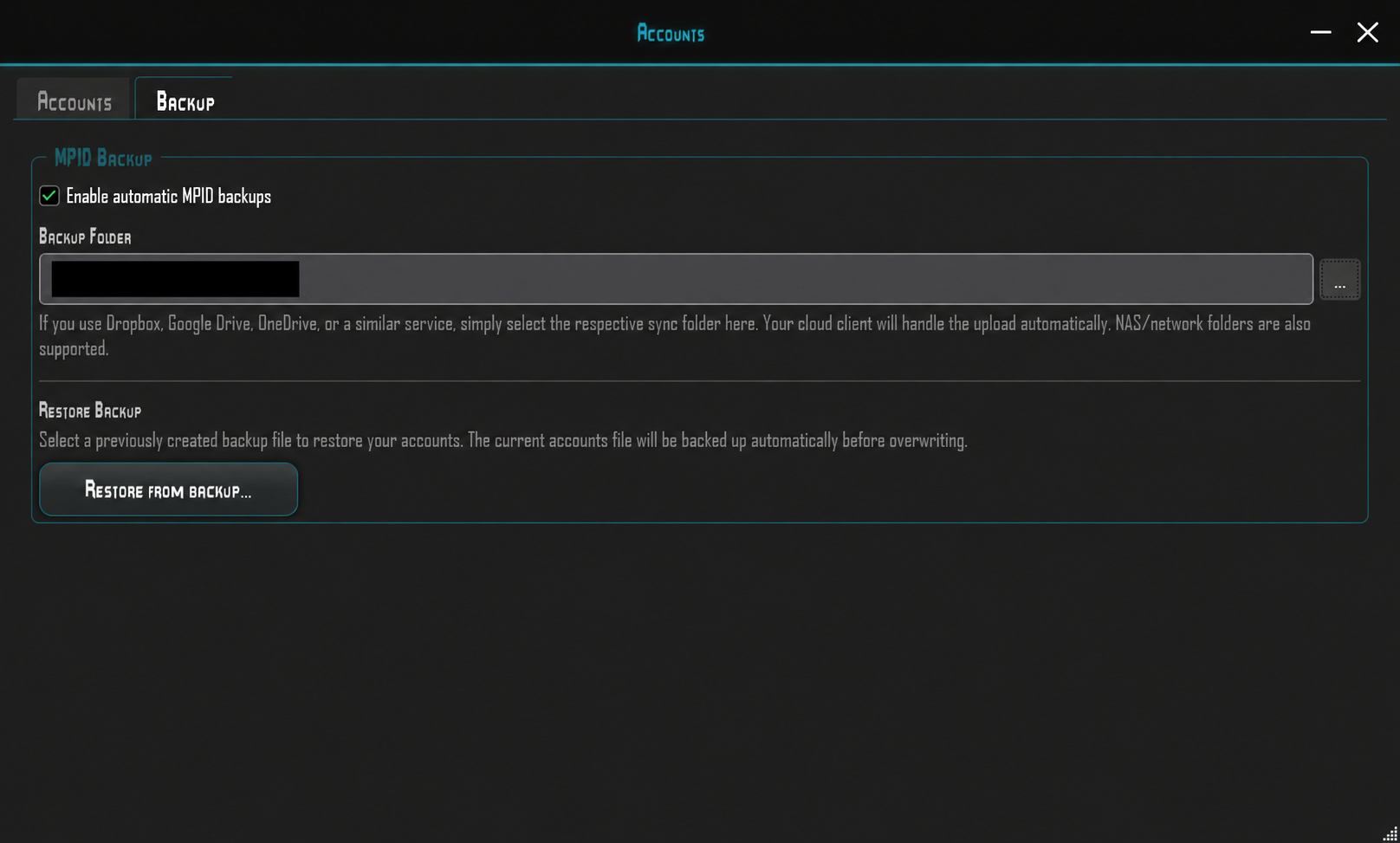
In the Backup tab, Enable automatic MPID backups enables automatic backups. Use the … button beside Backup Folder to choose a destination folder.
You can select a synced Dropbox, Google Drive or OneDrive folder. Your cloud client handles the upload. NAS and network folders are also supported.
Restore from backup… lets you select an existing backup file. The current accounts file is backed up automatically before it is overwritten.
Keep account backups secure. They are different from the diagnostic package in the Log window and do not belong in a public bug report.


