
Step by step
Change settings with a clear purpose
- 1
Open Settings
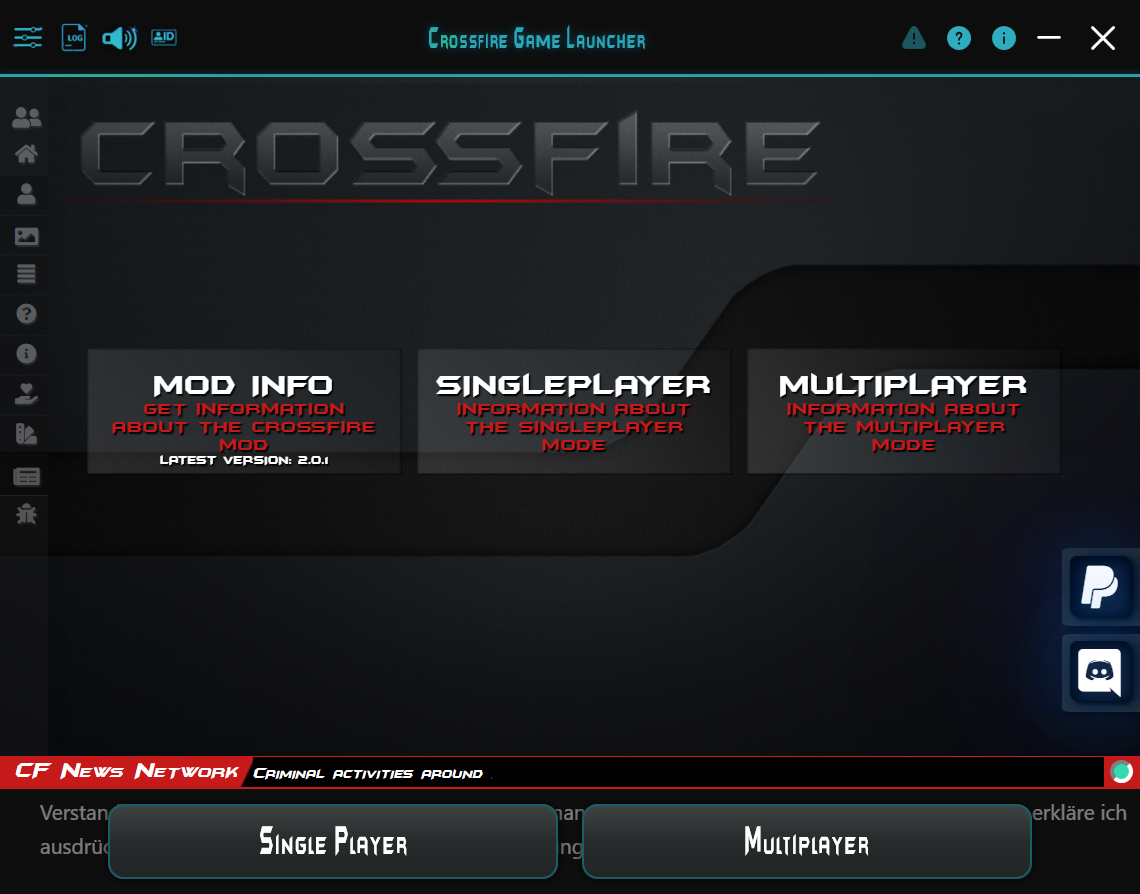
Click the sliders icon at the top left of the launcher.
- 2
Choose a category
Review the available graphics, interface, music and diagnostics categories.
- 3
Try one change
When troubleshooting, change one setting at a time and check the result.
- 4
Enable diagnostics when needed
Verbose logging and crash-dump capture are under General → Diagnostics.
Find your preferred setup
Open Settings for graphics and game options, UI scale, theme and music. Adjust them to your display and preferences.
When investigating a display issue, change one setting first and check the result. Note the change you made.
Diagnostic settings
Settings → General → Diagnostics contains Verbose logging and optional crash dump collection. Both features are explained separately in this guide.
General: interface and game options
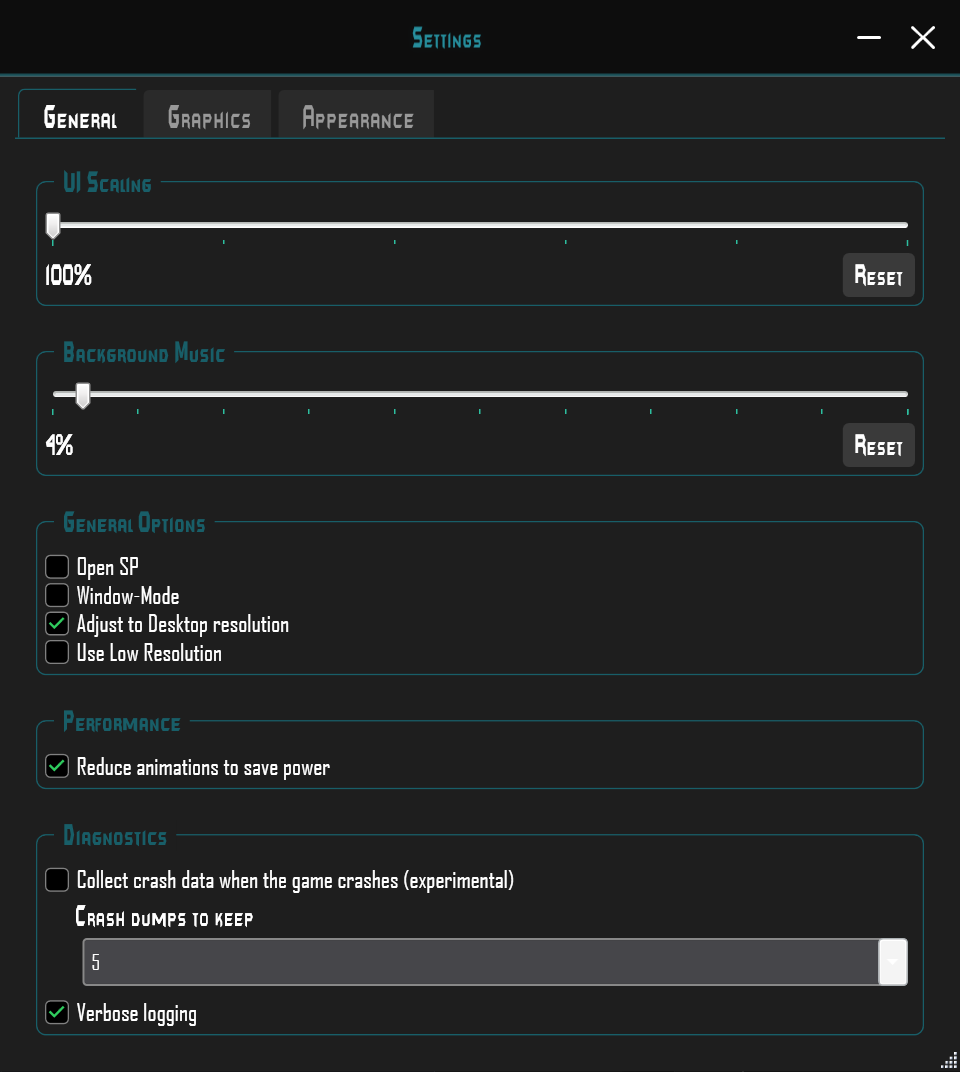
Use UI Scaling to make the launcher interface larger or smaller. Choose a size you can read comfortably. Reset restores the slider.
Background Music controls the launcher music volume. Set it to your preference.
General Options includes Open SP, Window-Mode, Adjust to Desktop resolution and Use Low Resolution. Window-Mode runs the game in a window. The resolution options match your screen or use a lower resolution.
Reduce animations to save power reduces launcher animations to save energy.
Graphics: choose a shader or renderer
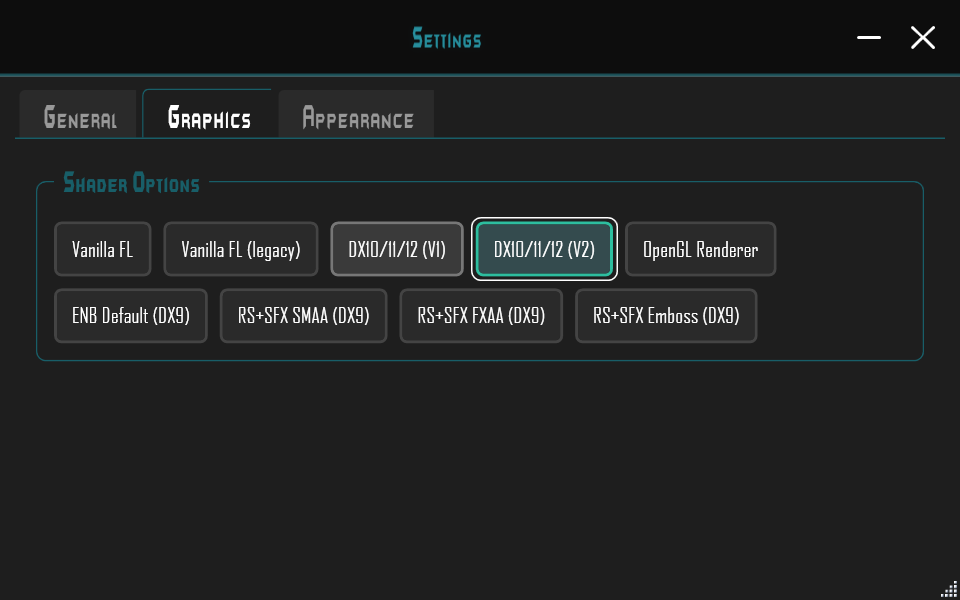
Choose your preferred graphics variant under Shader Options. The screenshot shows DX10/11/12 (V2) selected.
Other visible options are Vanilla FL, Vanilla FL (legacy), DX10/11/12 (V1), OpenGL Renderer, ENB Default (DX9), RS+SFX SMAA (DX9), RS+SFX FXAA (DX9) and RS+SFX Emboss (DX9).
Try a variant that runs well on your PC and gives you the look you want. When fixing graphics issues, change one variant and launch again so you can compare the result.
Appearance: customize the look
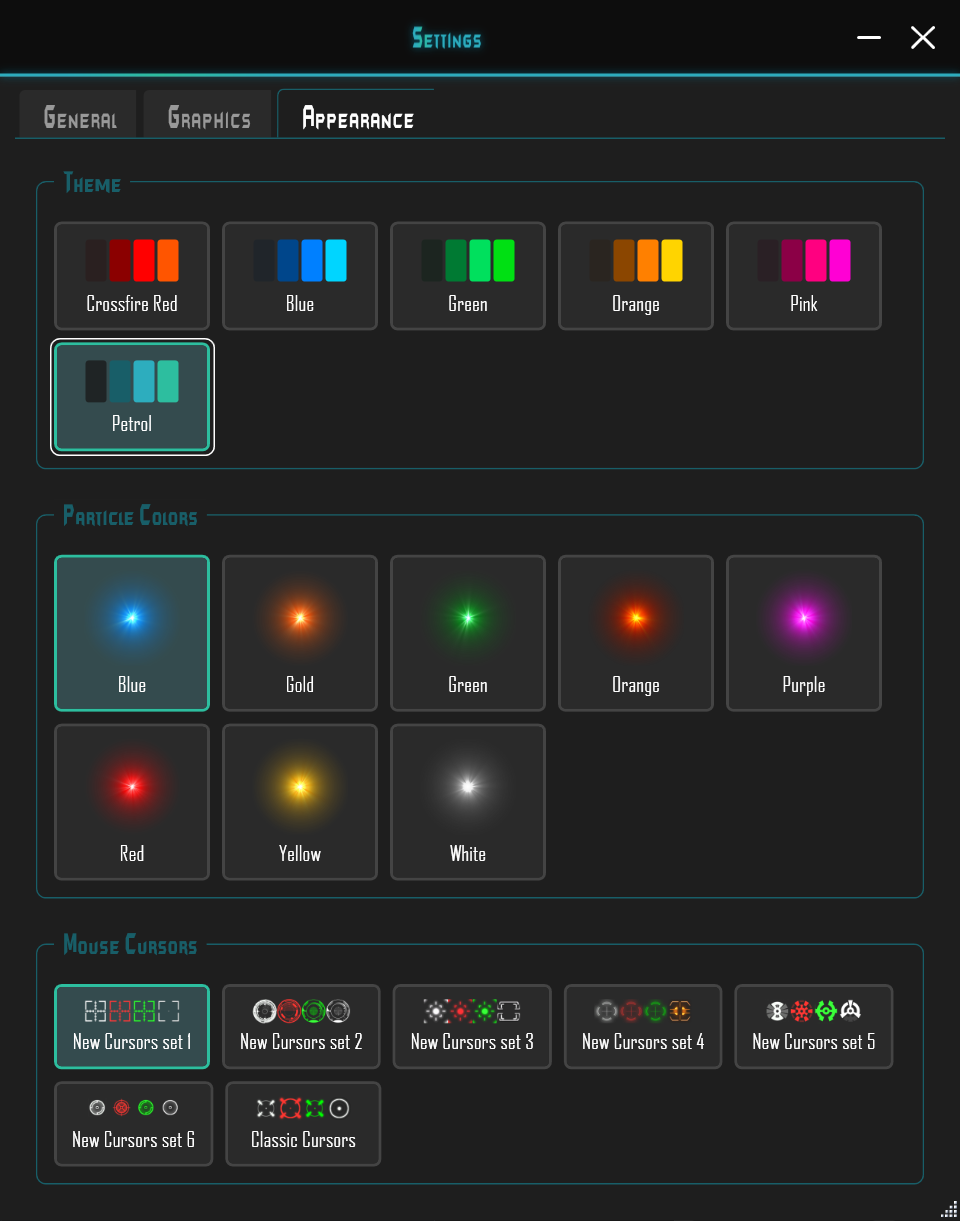
Theme offers Crossfire Red, Blue, Green, Orange, Pink and Petrol. Petrol is selected in this example.
Particle Colors includes Blue, Gold, Green, Orange, Purple, Red, Yellow and White. The previews show each color; Blue is selected here.
Mouse Cursors offers New Cursors set 1 through 6 and Classic Cursors. Use the previews to choose a set; this capture shows New Cursors set 1.
Diagnostics in the General tab
Collect crash data when the game crashes (experimental) enables optional crash-dump capture. It is disabled in the screenshot.
Crash dumps to keep controls how many dumps are retained; this capture shows 5. Verbose logging is enabled here and adds more detailed log entries. These example values are not required settings.


