

Step by step
Find the relevant log entries
- 1
Open Log
Click the Log icon in the top toolbar.
- 2
Match entries to the time
Find entries around the time of the issue and use the available filters.
- 3
Keep the information
Copy All copies the entries. Save... saves them as a text file.
- 4
Capture more detail if needed
Enable Verbose logging in Settings → General → Diagnostics and reproduce the issue.
The Log window
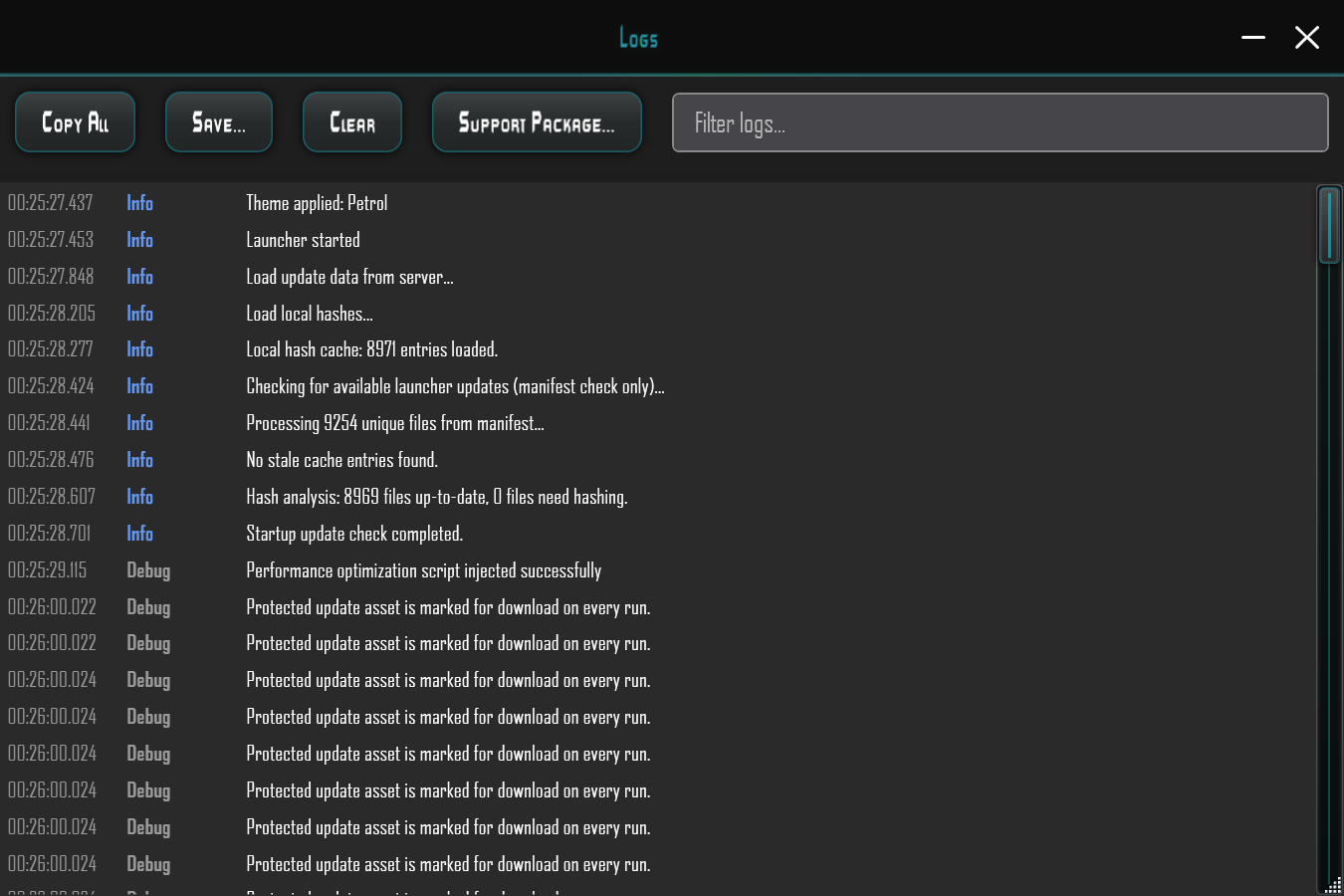
Open Log in the launcher to view live entries. You can filter entries, copy them with Copy All or save them as a text file with Save....
Record the time of the issue and look for the related entries. This makes it easier to identify the error in your report.
Filter logs... narrows the displayed entries. Remove your search text to read without that filter again.
Each visible row shows a time, a level such as Info or Debug, and a message. A Debug entry by itself is not an error message.
Copy All copies entries, Save... offers saving and Support Package... creates the diagnostic package. Preserve information you need before using Clear.
Where files are stored
The CFLauncher/ launcher folder contains launcher.log (current persistent log) and, when present, launcher.log.old (previous rotated log).
CrashDumps/ contains crash dumps when collection has been enabled. The Log window shows current activity; the files keep the record after the launcher closes.
Collect more detail
If needed, enable Verbose logging under Settings → General → Diagnostics before reproducing the issue. The log will contain more detail for investigation.


