

Step by step
Launch with an argument
- 1
Find the launcher file
Open the installation folder and check the actual filename.
- 2
Choose a mode
Use -sp for Single Player or -mp for Multiplayer. -sp:su skips update checks in Single Player.
- 3
Run the command
Open Windows Command Prompt in the EXE folder and add the argument after the launcher filename. For PowerShell, use the separate examples below.
Available launch options
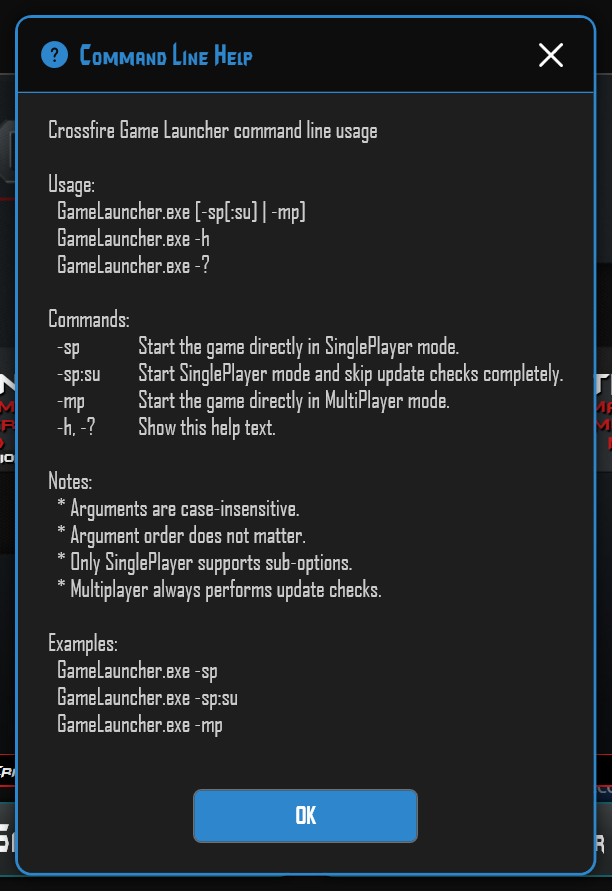
GameLauncher.exe -sp starts directly in Single Player mode.
GameLauncher.exe -sp:su starts Single Player and skips update checks completely.
GameLauncher.exe -mp starts directly in Multiplayer mode. Multiplayer always performs update checks.
GameLauncher.exe -h or GameLauncher.exe -? displays command line help.
Filename and arguments
The help uses the filename GameLauncher.exe. Use the actual filename of your installed launcher, for example Freelancer.exe. The commands above apply to Windows Command Prompt (cmd) in the EXE folder. PowerShell requires the syntax below.
Arguments are case-insensitive and their order does not matter. Only Single Player supports sub-options such as :su. Choose either Single Player or Multiplayer for your launch.
PowerShell examples
From your Crossfire installation EXE folder: .\Freelancer.exe -sp
Single Player without update checks: .\Freelancer.exe -sp:su
Multiplayer: .\Freelancer.exe -mp
Using a full example path: & "D:\Freelancer Crossfire\EXE\Freelancer.exe" -sp
Replace the filename and path with your actual installation. In PowerShell, .\ identifies a file in the current folder; & runs the quoted path.


